1. Download
Pick Chrome, Edge, Firefox, or Safari and save the zip for that browser.

Browser Extensions
Download the extension for your browser, load it once, and sign in with the same Optanik account. After that it fills saved logins, asks to save new ones, and lets you look up or create entries from the toolbar.
How it works
Install it once. Sign in with the same Optanik account you already use for Keyring. After that it fills logins, offers to save new ones, and lets you look up or create entries from the toolbar.
Pick Chrome, Edge, Firefox, or Safari and save the zip for that browser.

Unzip the file, then load it as an unpacked extension. The steps below walk through each browser.

Click the Keyring icon and use your Optanik email and password. MFA codes work from the same popup.

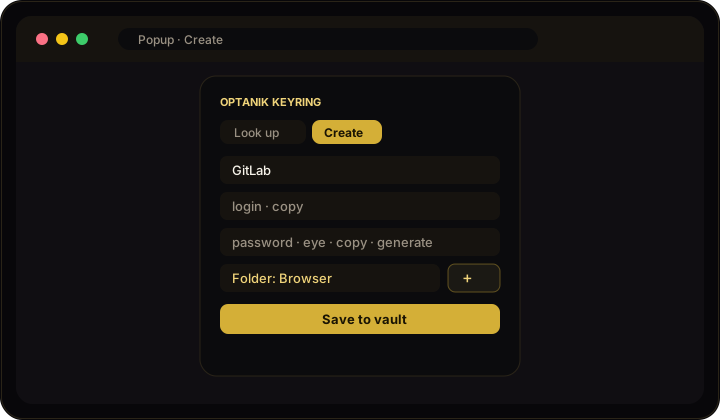
Fill a page, save after you log in, search the vault, or create a login by hand.
Each button gives you a zip made for that browser. Chrome and Edge use the same Chromium package. Firefox and Safari have their own install steps.

Works in Google Chrome on Windows, macOS, and Linux.
Download Chrome
Same package as Chrome. Load it from edge://extensions.
Download Edge
Uses the Firefox add-on manifest. Load it from about:debugging.
Download Firefox
Safari 16+ on a Mac. Convert the zip once with Apple’s tool, then enable it.
Download SafariDownload first, unzip the folder, then follow the picture for your browser. You only do this once on each computer.
Chrome and Edge
chrome://extensions or edge://extensions.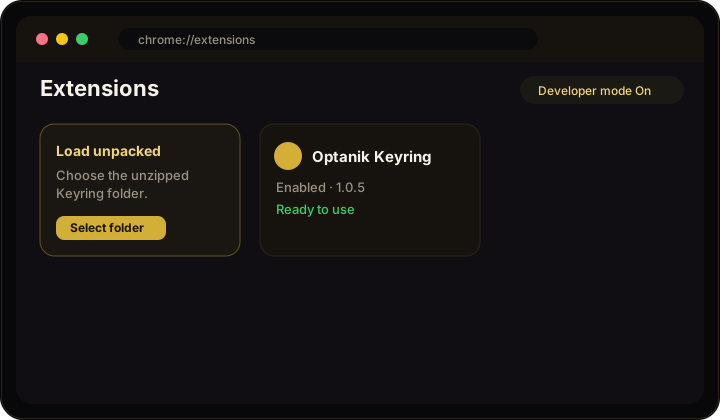
Firefox
about:debugging#/runtime/this-firefox.manifest.json inside the unzipped folder.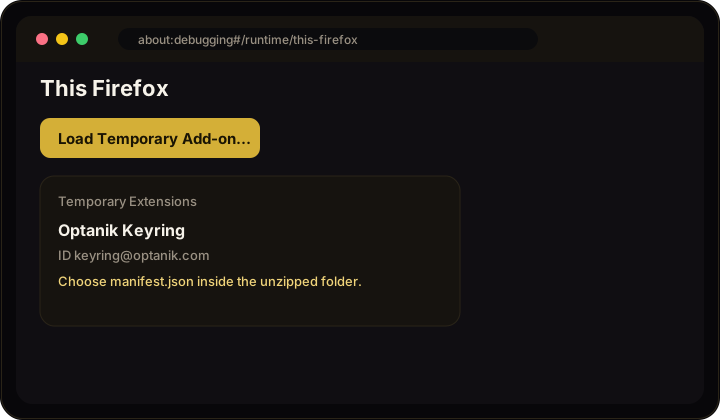
Safari
xcrun safari-web-extension-converter on that folder.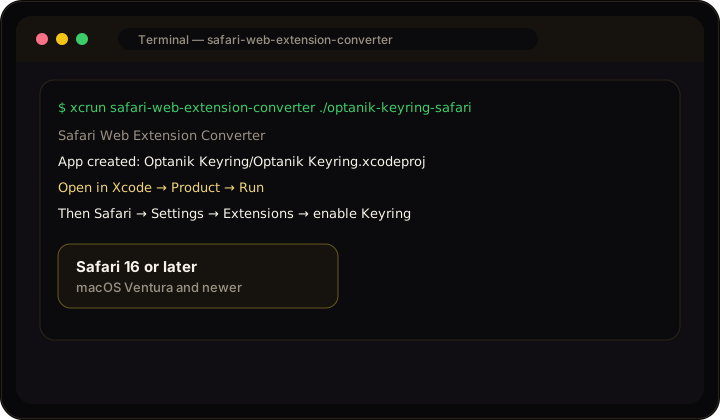
Everything happens from the gold Keyring icon and two small bars that appear on login pages. You do not need to keep the Keyring website open.
Sign in
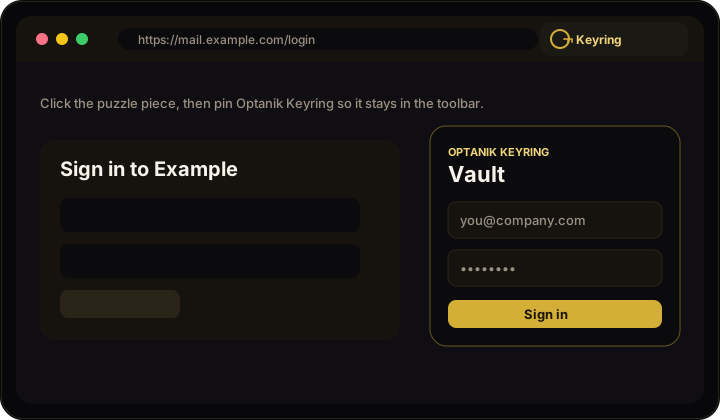
Fill

Save
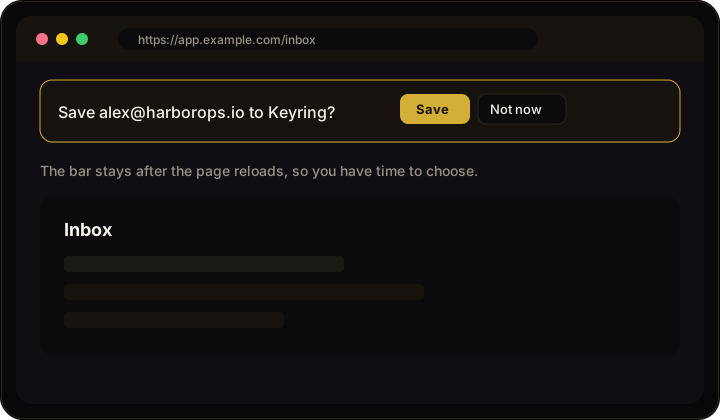
Look up

Generate

Create